


How to Submit
The workflow for creating a new submission in EasyChair is as follows:
- Create an EasyChair account (if you do not have one yet).
- Follow the submission link from the conference website.
- Log in to EasyChair.
- Click on “New submission”.
- Fill out the submission form and click “Submit”.
1. Create an EasyChair Account
To submit, you need an EasyChair account. If you do not have one, you should create it first. We have a help article explaining how to create an account.
If you already have an EasyChair account, you can ignore this step. You do not need a separate account for each conference to which you submit.
2. Follow the Submission Link
To make a new submission in EasyChair, prospective authors need to follow the EasyChair submission link for this conference. This link is usually posted on a third-party site, such as the conference website or social media, and redirects authors to the conference page on EasyChair. If the conference CFP is published on the EasyChair Smart CFP, it will also have a submission link.
Currently, such links have the format https://easychair.org/conferences/?conf=XYZ, where XYZ is a sequence of letters and digits. For example, if you want to submit to the conference CATSS-99, you can expect the page to be similar to https://easychair.org/conferences/?conf=catss99.
If you do not know the submission link, you should check with the organizers, as only they know the correct link. If you find out that the provided an incorrect link please inform them, as you are probably not the only person who cannot find out how to submit.
When you access the submission link, there are two possibilities, depending on whether you are already logged in to EasyChair or not. If not, read the following section. If you are logged in, there are two possibilities:
- EasyChair says that the page does not exist. In this case you should contact conference organizers and explain to them that the submission web page they specified is incorrect.
- Otherwise, skip the next session and go to Section 4.
3. Log In
If you have followed all the steps the steps above and you are not logged in to EasyChair, EasyChair will ask you to log in. You will see something like this:
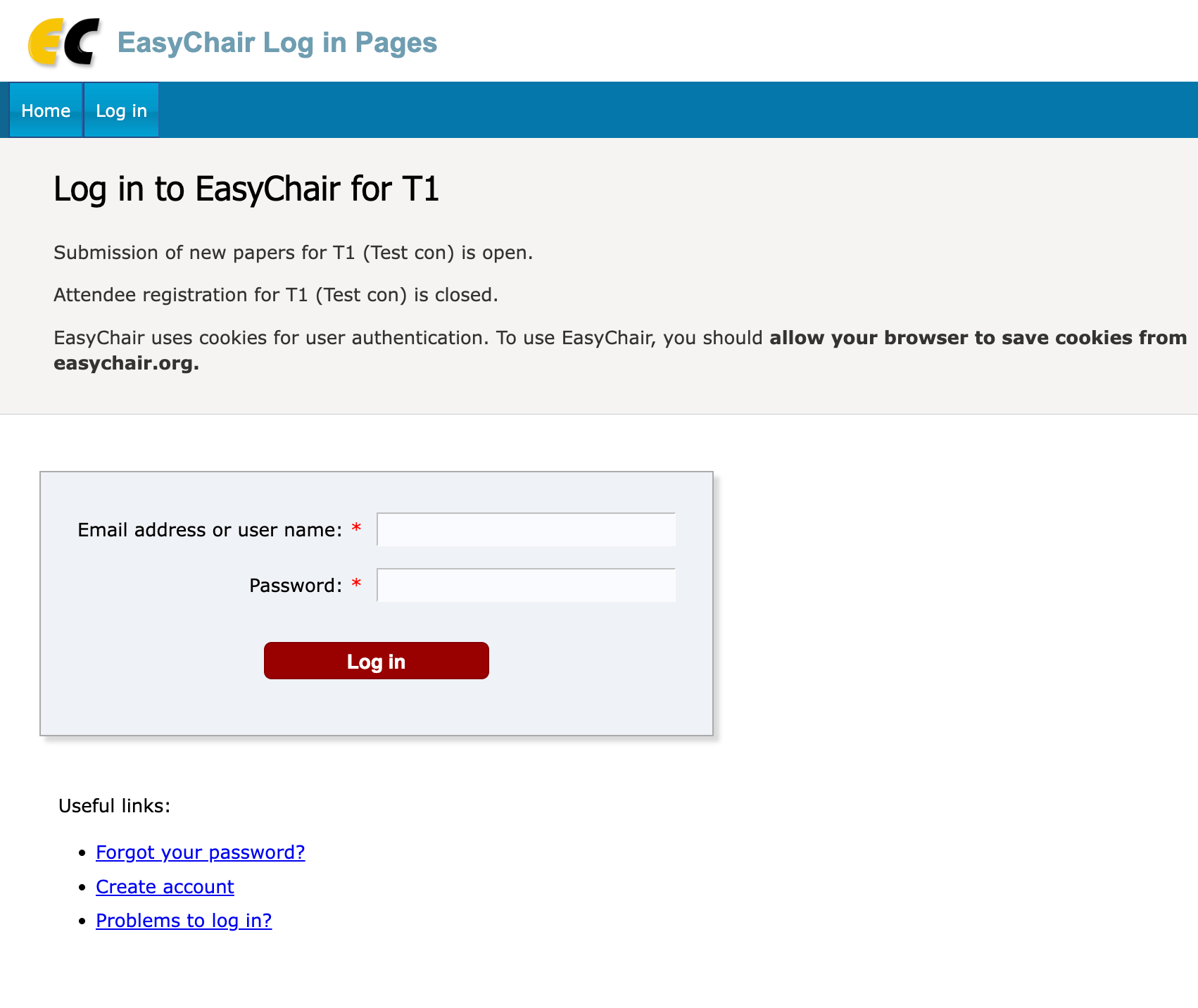
If you reached a login page which does mention any conference, this again means that your reached a wrong page. In this case you should contact conference organizers and explain to them that the submission web page they specified is incorrect.
If the page does mention a conference, please double check that the conference you reach is the one you need. You can do this by verifying the acronym and the conference name in the page (T1 and Test con in our example).
4. Submission
Once logged in to the conference, you should click on the “New submission” tab in the main menu.
If the main menu does not have the “New submission” tab, new submissions have been disabled by conference chairs. If you believe this is an error, you should contact the organizers directly.
Please note that EasyChair support cannot open or close the submission page or submit papers on behalf of authors: EasyChair only provides the platform and does not run the conferences hosted on it.
When you click on “New submission”, you should fill out the submission form. If the conference is multi-track and new submissions are enabled for more than one track, EasyChair will ask you to select a track first.
5. Typical Problems
If there are errors in the form submission, EasyChair will display you these errors. Please read them carefully and fix them. Based on the feedback from users, there are three main errors, which authors do not understand.
- You must be one of the authors. EasyChair does not accept submissions on behalf of others, so you should be one of the authors. Sometimes an author makes a mistake, when he or she enters himself/herself, but specifies an email address which does not belong to his/her EasyChair account. In this case EasyChair cannot identify that the entered email address is an author’s email address.
- Corresponding authors. EasyChair requires that there is at least one corresponding author and this author has an EasyChair account, otherwise emails sent by organizers to submission authors may reach nobody. We recommend ticking yourself as a corresponding author.
- Keywords. You should enter at least three keywords, one keyword per line. Sometimes authors enter keywords on the same line, separated by commas or semicolons, e.g. artificial intelligence, machine learning, LLMs, which EasyChair will consider as a single keyword.
6. Submission Access and Updates
When the submission is successful, you will see all conference submissions in your author menu under the menu tab “My submissions”. You can view each of these submissions. You would also normally be able to update it right after the submission, but not necessarily, if chairs disabled submission updates.